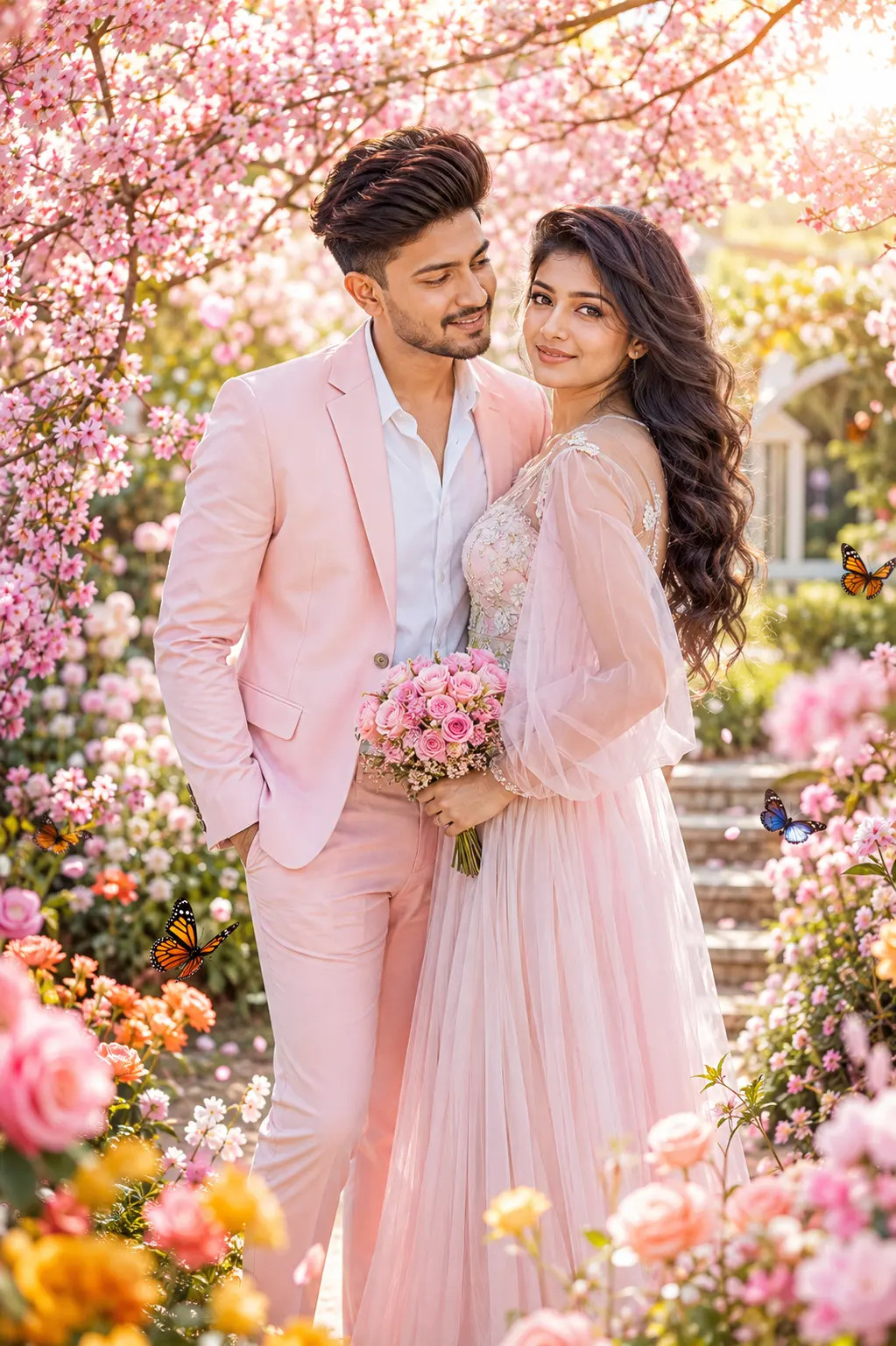
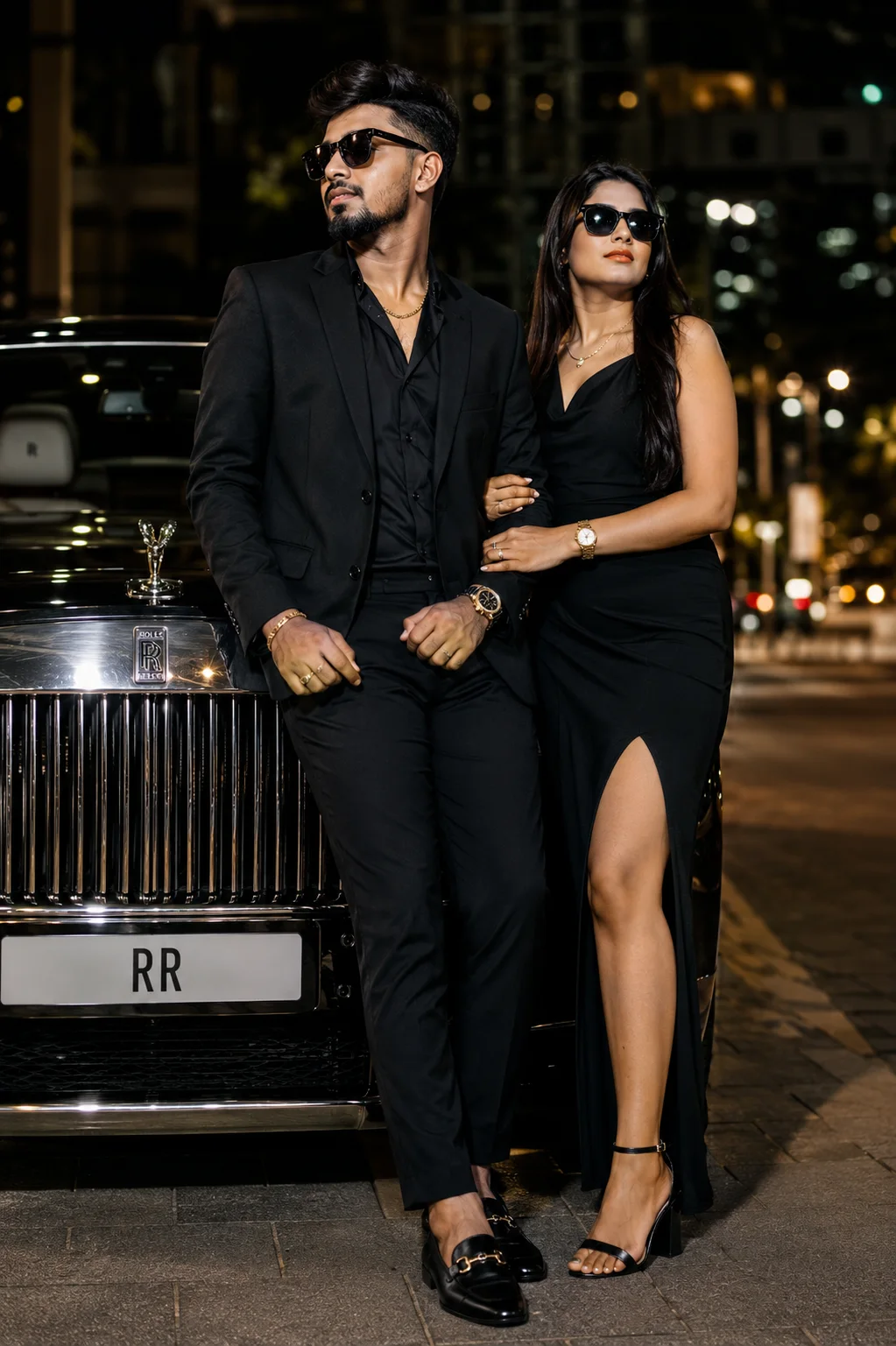
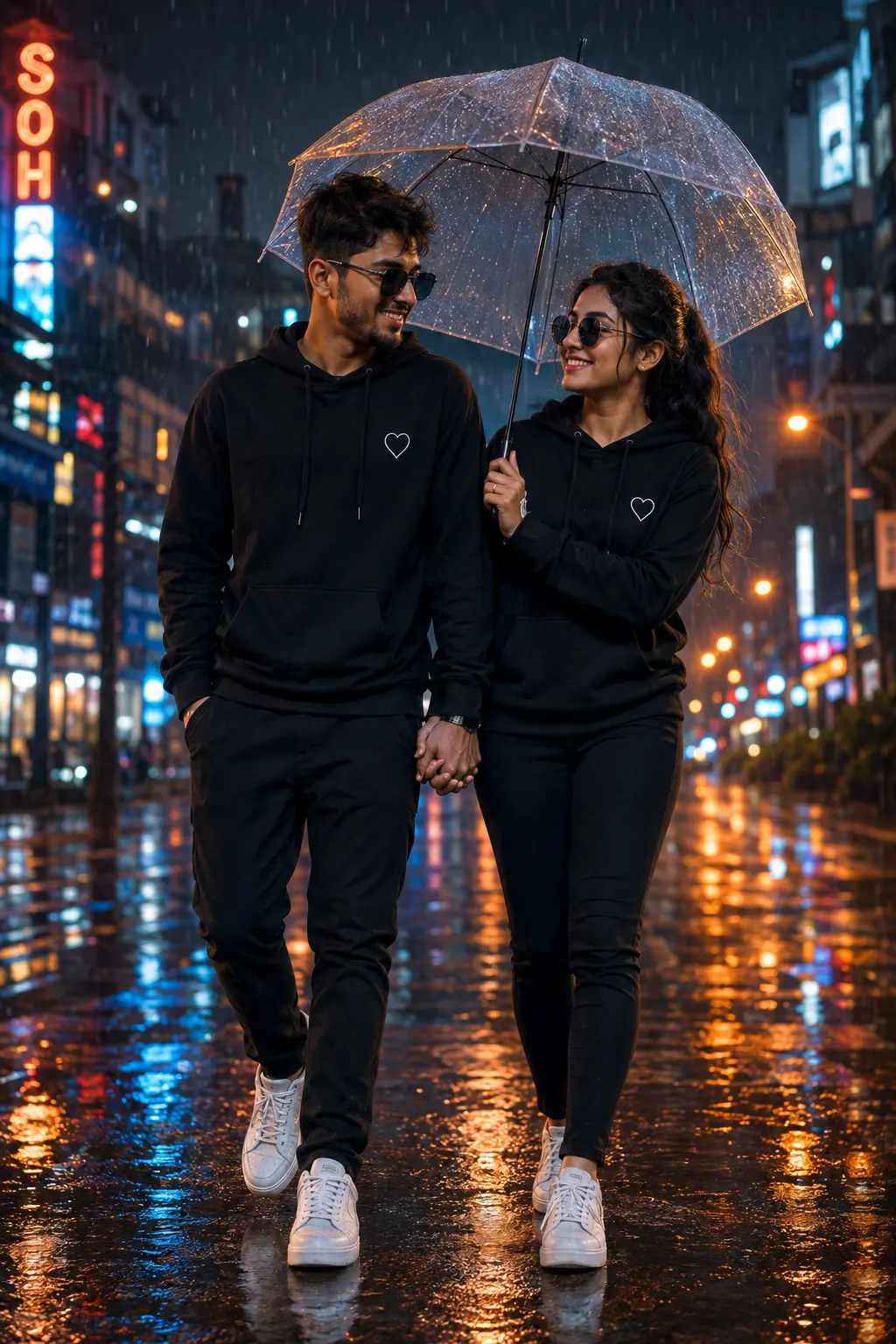
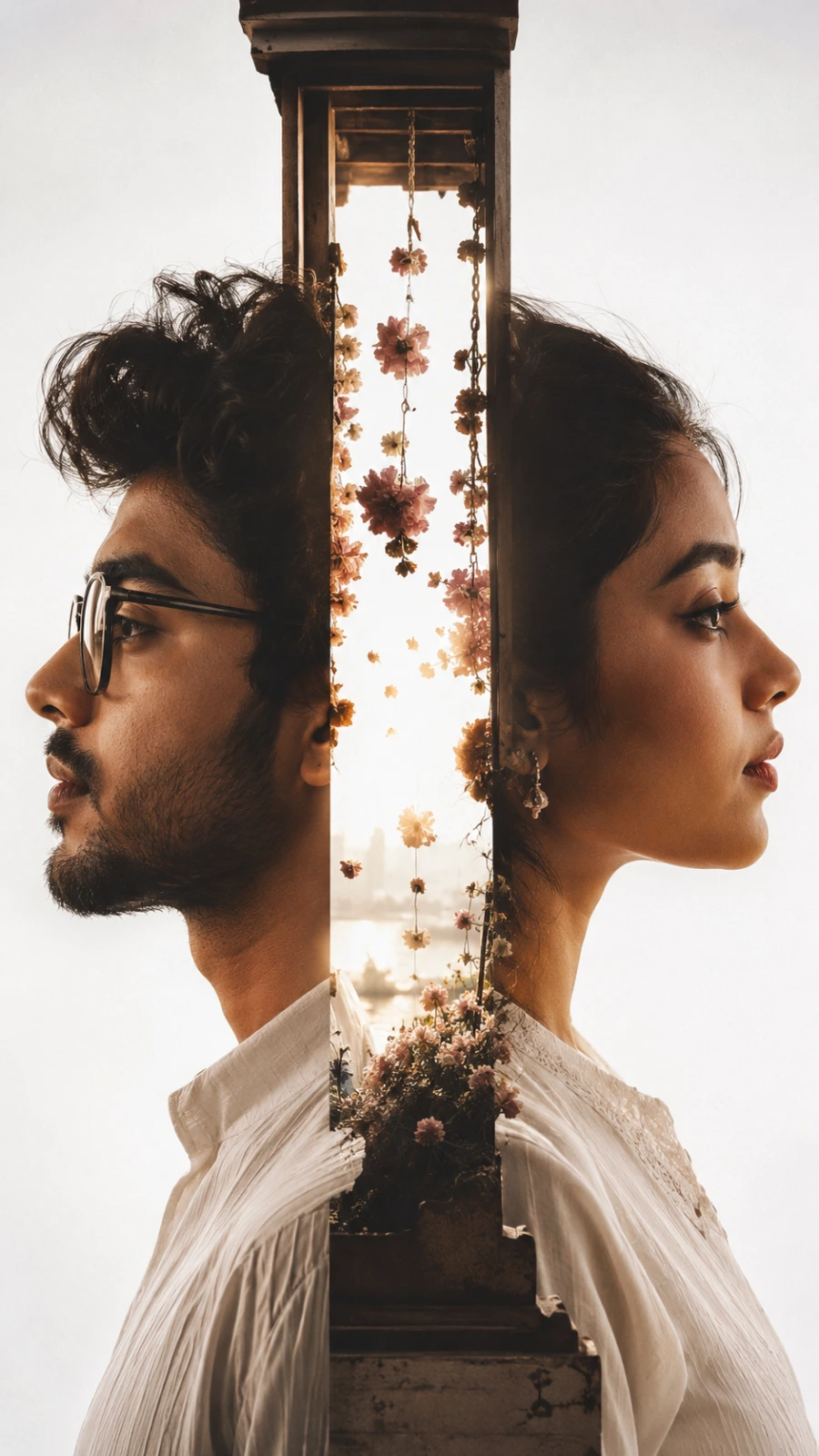
Surreal Back-to-Back Portraits with Floral Divider
Create an epic couple AI image using this high-quality prompt optimized for Chat GPT image generation.
Prompt Content
Use this prompt in your favorite AI image generator.
Creative optical illusion double-profile art, surreal side profile silhouette composition. A man's facial profile looking to the left seamless visually merged back-to-back with a woman's facial profile looking to the right. A wooden beam or architectural wall fragment creates a surreal vertical slice through the man's head, revealing hanging floral garlands and dried flowers drifting in a bright, ethereal background behind them. Soft warm lighting, minimalist bright white backdrop, warm tone color palette, cinematic movie poster aesthetics, ultra-detailed textures, moody atmosphere, 8k resolution, photorealistic studio photography --ar 9:16 Don’t change face
About This Prompt
Auto GeneratedThis is a high-quality Couple AI prompt crafted by Admin. It is designed to produce stunning visuals with minimal iteration. The prompt uses carefully selected descriptors and stylistic cues optimised for Chat GPT, making it ideal for creators who want consistent, professional results.
How To Use
Reusable Guide- 1Copy the prompt using the "Copy Prompt" button above.
- 2Open your preferred AI model (Chat GPT) and paste the prompt into the input field.
- 3Optionally, replace bracketed placeholders (e.g. [subject], [style]) with your own values to personalise the output.
- 4Run the prompt and review the result — iterate by tweaking descriptors for different moods or compositions.
- 5Save or export your favourite generations directly from the AI tool's interface.
For best results, use this prompt as-is before making edits — the defaults are already optimised.