Common AI Image Prompt Mistakes and How to Avoid Them
“Artificial intelligence has democratized visual creation, but predictable prompt mistakes can sabotage your results. Learn the most common AI image prompt traps and how to avoid them to consistently generate images that match your vision.”
Introduction
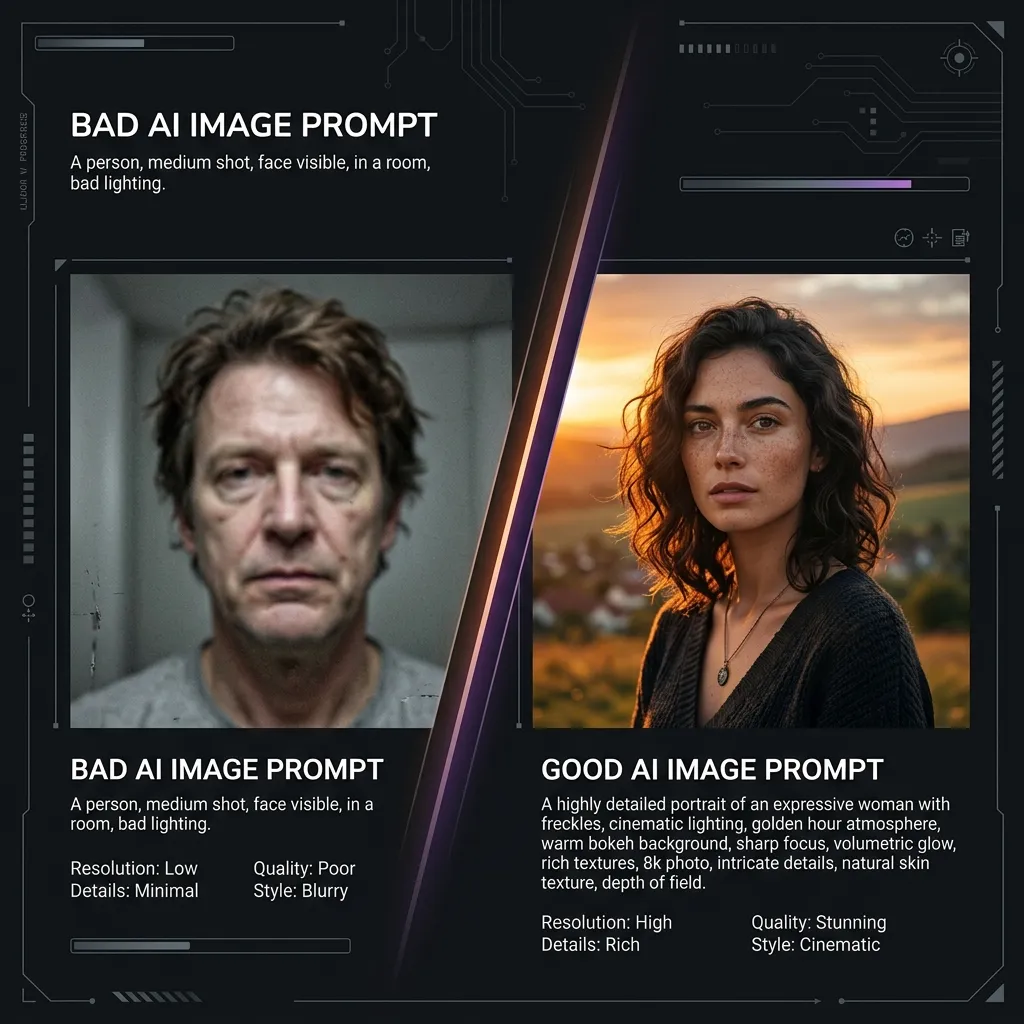
Artificial intelligence has democratized visual creation, putting the power of a digital art studio into anyone's hands. Yet, despite the incredible capabilities of tools like Midjourney, DALL-E, Stable Diffusion, and Google Gemini, many users find themselves frustrated by outputs that fall far short of their imagination. The images are blurry, the compositions are awkward, the colors are muddy, or the subject simply doesn't look right.
More often than not, the problem isn't the AI—it's the prompt. Even experienced users fall into predictable traps that sabotage their results. In this comprehensive guide, we'll dissect the most common AI image prompt mistakes, explain why they happen, and give you actionable strategies to fix them. By the end, you'll be equipped to consistently generate images that match—and sometimes even exceed—your creative vision.
Mistake #1: Being Vague and Overly Generic
The Problem
"A beautiful landscape" or "a cute cat" might be the most common prompts ever written—and they produce the most generic, forgettable images imaginable. When you're vague, the AI has no choice but to fall back on its most statistically common associations, resulting in images that look like stock photography from 2010.
Why It Happens: We naturally think in general terms, especially when we're just exploring an idea. But AI models lack human intuition and context. They don't know whether you want a misty Scottish highland or a sun-baked desert canyon. They don't know if your "cute cat" should be a fluffy Persian or a sleek Siamese.
How to Fix It: Inject specificity into every major element of your prompt. Instead of "a beautiful landscape," try:
A beautiful landscape
A dramatic, misty mountain landscape with a winding river through a pine forest at golden hour, with snow-capped peaks in the distance.
A sweeping aerial view of the Scottish Highlands at sunrise, with dramatic clouds casting moving shadows over rolling green hills, a meandering silver river cutting through the valley, and ancient stone ruins nestled among purple heather.
Gemini-Specific Fix
Gemini's native multimodal architecture rewards narrative descriptions. Google's official guidance states: "Describe the scene, don't just list keywords." A paragraph with context and detail will consistently outperform a keyword salad.
Mistake #2: Overcrowding the Prompt
The Problem
You want to include everything—a dragon, a princess, a castle, a knight, a glowing sword, a full moon, a waterfall, and maybe a unicorn for good measure. The result? A chaotic mess where nothing is rendered properly.
Why It Happens: It's tempting to try to get everything in one generation. More elements, you think, means more value. But AI models have limited "attention" to distribute across your prompt. When you overwhelm them with too many subjects and details, everything competes for visual real estate, and nothing receives the focus it deserves.
How to Fix It: Prioritize your top 2-3 elements and let the AI handle the rest. The "90/10 rule" works well: 90% of your prompt's power should go to the most important elements, and 10% to secondary details.
A cyberpunk city street with flying cars, holographic advertisements, neon signs, rain-slicked pavement, a mysterious woman in a trench coat, a robotic dog, food vendors, skyscrapers, satellites in the sky, and crowded sidewalks.
A cyberpunk city street at night featuring a mysterious woman in a trench coat standing in the rain beneath towering neon skyscrapers. Cinematic composition with dramatic lighting from holographic billboards.
Gemini-Specific Fix
Gemini handles complexity better than many models, but even it has limits. If you need multiple elements, consider using Gemini's multi-image composition feature: generate different elements separately and combine them in a subsequent prompt using reference images.
Mistake #3: Ignoring Style, Medium, and Technique
The Problem
You describe exactly what you want to see but forget to specify how it should look. The AI defaults to its most generic rendering style, which is usually a bland, overly smooth digital illustration that lacks character.
Why It Happens: Many users focus entirely on content and forget about aesthetics. We think "I want a portrait" and forget that a portrait can look like a Renaissance oil painting, a gritty black-and-white photograph, a whimsical children's book illustration, or a hyperrealistic 3D render.
How to Fix It: Always include at least one style, medium, or technique descriptor in your prompt. Consider these categories:
- Art Movements: Impressionism, Cubism, Surrealism, Art Deco, Baroque, Romanticism, Pop Art
- Mediums: Oil painting, watercolor, charcoal sketch, pencil drawing, ink wash, digital art, 3D render, collage
- Photography Terms: Cinematic lighting, bokeh, shallow depth of field, macro, long exposure, HDR, golden hour, chiaroscuro
- Artist Inspirations: "In the style of Gustav Klimt," "reminiscent of Hayao Miyazaki," "Studio Ghibli aesthetic"
- Technical Quality: Highly detailed, photorealistic, 8K, ultra-detailed, sharp focus, intricate textures
A portrait of an elderly fisherman
A dramatic chiaroscuro oil painting of an elderly fisherman with weathered skin and deep wrinkles, captured with cinematic lighting that emphasizes his contemplative expression, hyperrealistic detail, reminiscent of Rembrandt's portraiture.
Gemini-Specific Fix
Gemini excels at style transfer. You can literally say, "Apply the artistic style of Van Gogh's 'Starry Night' to this scene" and the model will understand and execute the transformation seamlessly.
Mistake #4: Neglecting Composition and Framing
The Problem
You describe the subject and style perfectly, but the resulting image has awkward cropping, a boring angle, or elements poorly positioned within the frame.
Why It Happens: Composition is an entire discipline of visual art, and many users simply don't think about it. We describe what we see, not how the camera (or eye) should see it.
How to Fix It: Treat your prompt like you're directing a photoshoot. Specify:
- Shot Type: Close-up, extreme close-up, medium shot, full body shot, wide shot, establishing shot
- Camera Angle: Bird's eye view, high angle, eye level, low angle, worm's eye view, Dutch angle (tilted)
- Perspective: First-person, third-person, overhead, macro, fisheye
- Positioning: Center frame, rule of thirds, leading lines, framing within framing
A knight in armor standing in a field
A low-angle, heroic shot of a medieval knight in full plate armor standing in a misty field at dawn, sword planted in the ground, dramatic backlighting creating a silhouette effect, wide composition with the knight positioned in the lower third of the frame.
Gemini-Specific Fix
Use the official Gemini photorealistic template that includes composition details: "A photorealistic [shot type] of [subject], set in [environment]. The scene is illuminated by [lighting description]. Captured with a [camera/lens details], emphasizing [key textures and details]."
Mistake #5: Forgetting to Specify Aspect Ratio
The Problem
Your image comes out perfectly composed but is completely unusable because it's a square (1:1) when you needed a banner (16:9) or a vertical portrait (9:16).
Why It Happens: Most AI generators default to 1:1 unless otherwise specified. Users assume the AI will "just know" what aspect ratio fits their needs.
How to Fix It: Always specify aspect ratio at the end of your prompt or using the appropriate parameters:
| Platform | Aspect Ratio Syntax |
|---|---|
| Midjourney | --ar 16:9, --ar 3:2, --ar 2:3 |
| DALL-E | Specify in prompt or use interface options |
| Stable Diffusion | Use width/height settings or --aspect_ratio |
| Gemini | Specify in natural language: "Generate a 16:9 image of..." |
Gemini-Specific Fix
Gemini works best when you specify your desired format clearly in the prompt. Prompt for aspect ratios like 4:3, 1:1, or 16:9 using natural language. Example: "Create a cinematic wide landscape (16:9 aspect ratio) of a futuristic city skyline at twilight..."
Mistake #6: Misusing Negative Prompts
The Problem
You write "no blurry images, no bad anatomy, no distorted faces, no extra limbs, no watermarks" and get frustrated when the AI still produces these issues.
Why It Happens: Many AI models, especially older ones, struggle with negative prompts. The token "no" or "without" often gets lost in processing, and the AI may actually generate more of what you're trying to avoid because those concepts are heavily represented in its training data.
How to Fix It: Use positive, constructive language instead. Describe what you want the AI to do, not what you want it to avoid.
| Ineffective (Negative) | Effective (Positive) |
|---|---|
| "No blurry images" | "Crisp focus, high detail, sharp edges" |
| "No bad anatomy" | "Anatomically correct, perfectly proportioned" |
| "No distorted faces" | "Symmetrical face, clear facial features, photorealistic skin texture" |
| "No extra limbs" | "Natural human anatomy, correct number of limbs" |
Gemini-Specific Fix
Google explicitly recommends avoiding "semantic negative prompts" that use "no" or "without." Instead, use positive descriptions to guide the model toward your desired output. The official documentation states: "Instead of saying 'no cars,' describe the desired scene positively: 'an empty, deserted street with no signs of traffic.'"
Mistake #7: Using Vague Emotional or Abstract Terms
The Problem
You write "a peaceful scene" or "a mysterious atmosphere" and the AI gives you something that feels nothing like what you imagined.
Why It Happens: Emotions and abstract concepts are subjective and culturally coded. "Peaceful" to you might mean a quiet forest stream; to the AI, it might mean a minimalist room with soft lighting. These terms are too broad to be useful.
How to Fix It: Translate emotions and moods into concrete visual descriptors:
| Abstract Term | Concrete Visual Translation |
|---|---|
| Peaceful | Soft morning light, gentle mist, calm water, muted colors, smooth textures |
| Mysterious | Fog, shadows, low-key lighting, hidden faces, obscured details, deep blue tones |
| Melancholic | Overcast sky, desaturated colors, empty spaces, rain, long shadows |
| Joyful | Bright sunlight, vibrant colors, smiles, open spaces, warm golden tones |
| Cinematic | Dramatic lighting, shallow depth of field, film grain, wide aspect ratio |
A mysterious forest at night
A haunting forest at twilight with thick fog creeping between ancient oak trees, deep blue and purple color palette, moonlight breaking through the canopy creating long dramatic shadows, low-key lighting with high contrast, atmospheric and eerie composition.
Mistake #8: Writing Too Much or Too Little
The Problem
Your prompt is either a three-word phrase that yields generic results or a paragraph so dense that the AI gets confused and produces visual noise.
Why It Happens: Finding the "sweet spot" for prompt length is challenging. Different models have different ideal lengths, and over-correction often swings too far in the opposite direction.
How to Fix It: Follow these platform-specific guidelines:
| Platform | Ideal Prompt Length | Best Practices |
|---|---|---|
| Midjourney | 3-8 short phrases (40-80 words) | Use commas between concepts, parameters at the end |
| DALL-E | 1-2 descriptive sentences (20-60 words) | Natural language works best |
| Stable Diffusion | Detailed paragraphs (75-150 words) | More technical language often helps |
| Gemini | 1-3 narrative sentences (40-100 words) | Use natural, descriptive language; avoid keyword stuffing |
Gemini-Specific Fix
Gemini's native multimodal understanding means it actually prefers well-structured, narrative prompts. Google's official recommendation is to avoid keyword stuffing and instead write descriptively with proper grammar and complete sentences.
Mistake #9: Not Respecting Model Limitations
The Problem
You ask for images with complex text, realistic hands, or multiple interacting characters and get frustrated when the results are mangled.
Why It Happens: Different AI models have different capabilities and limitations. Text rendering, for example, has historically been a weakness for diffusion models. Hands and fingers—especially multiple hands interacting—remain notoriously difficult.
How to Fix It: Know your model's strengths and weaknesses:
- Text Rendering: Gemini 2.5 Flash and Gemini 3 Pro excel at rendering clear text. Midjourney and earlier DALL-E versions struggle with it.
- Hands and Anatomy: All models have improved, but complex interactions still challenge them. Try using negative prompts like "perfectly formed hands" or generate them separately and composite.
- Multiple Characters: Some models handle group scenes better than others. Use detailed descriptions of each character's position and interaction.
- Action Scenes: Dynamic poses and complex interactions require careful prompting. Use action verbs and specify the sequence of events.
Gemini-Specific Fix
Use Gemini's text rendering capabilities for logos, posters, and diagrams. Enclose your desired words in quotes and describe the typography: "Create a modern logo for 'The Daily Grind' with bold sans-serif text."
Mistake #10: Accepting First Results Without Iteration
The Problem
You run one prompt, get a mediocre result, and give up—assuming the AI "isn't good enough" or "doesn't understand you."
Why It Happens: We're used to one-shot tools where the first output is supposed to be the final result. AI image generation is fundamentally different—it's an iterative, collaborative process.
How to Fix It: Adopt a "draft and refine" mindset. Treat each generation as a rough draft:
- 1Generate a first set of images with your baseline prompt
- 2Analyze what worked and what didn't
- 3Refine the prompt by emphasizing successful elements and removing or modifying problematic ones
- 4Regenerate and repeat until satisfied
Example Iteration Cycle:
- Draft 1: "A futuristic city"
- Draft 2: "A futuristic cyberpunk city at night with neon lights, rain, and flying cars" (Added specifics)
- Draft 3: "A futuristic cyberpunk city at night with neon pink and blue lights reflecting on rain-slicked streets, flying cars overhead, cinematic composition, wide angle, dramatic clouds, photorealistic 8K" (Added style and technical specs)
- Draft 4: "A futuristic cyberpunk city at night featuring a lone figure in a trench coat walking through neon-lit rain, flying cars overhead, Blade Runner aesthetic, dramatic cinematic lighting, shallow depth of field, 8K photorealistic --ar 16:9" (Added subject, reference, and aspect ratio)
Gemini-Specific Fix
Gemini's conversational editing feature is perfect for iteration. Don't generate from scratch each time—follow up with natural language refinements: "That's great, but can you make the lighting warmer?" or "Keep everything the same but change the character's coat color to red." or "Now show me the same scene from a low-angle perspective."
Mistake #11: Failing to Use Reference Images
The Problem
You struggle to describe exactly what you want, and the AI's interpretation never quite matches your vision.
Why It Happens: Language is imperfect. Some visual concepts—especially specific poses, compositions, or character designs—are incredibly difficult to capture in words alone.
How to Fix It: Use image-to-image prompting or reference image features. Most major platforms now support uploading reference images:
- Midjourney: Use image prompts with --iw (image weight) parameter
- DALL-E: Upload reference images through the interface
- Stable Diffusion: Use img2img features with denoising strength control
- Gemini: Use multi-image composition to combine elements from multiple references
Gemini-Specific Fix
Gemini excels at multi-image composition. You can combine up to 14 reference images in a single prompt, maintaining consistency for up to 5 people: "Create a professional e-commerce fashion photo. Take the blue floral dress from the first image and let the woman from the second image wear it. Generate a realistic, full-body shot of the woman wearing the dress."
Mistake #12: Not Adapting to Your Specific Platform
The Problem
You copy a prompt that worked perfectly on Midjourney, paste it into DALL-E or Gemini, and get terrible results.
Why It Happens: Each AI platform has been trained differently, uses different architectures, and responds to language in unique ways.
How to Fix It: Learn the specific "dialect" of your chosen platform:
Midjourney Specifics
Use natural language with commas separating concepts. Add parameters at the end like --stylize, --chaos, --ar, --iw.
DALL-E Specifics
Handles detailed, full-sentence descriptions well. Excels at conceptual combinations. Responds to style-specific terminology.
Stable Diffusion Specifics
More technical prompts often work better. Benefits from specific camera and lens details. Negative prompts are particularly important.
Gemini Specifics
Responds exceptionally well to narrative, descriptive prompts. Excels at conversational editing and refinement. The golden rule: describe the scene, don't just list keywords.
Mistake #13: Forgetting About Lighting and Atmosphere
The Problem
Your images look flat, artificial, and lack depth or emotional resonance.
Why It Happens: Lighting is arguably the most important element of visual art, yet it's frequently overlooked in prompting. We describe objects and people but forget how they're illuminated.
How to Fix It: Lighting descriptors dramatically improve image quality:
| Lighting Type | When to Use | Visual Effect |
|---|---|---|
| Golden Hour | Warm, romantic, nostalgic scenes | Soft golden light, long shadows, warm tones |
| Dramatic/Chiaroscuro | High contrast, moody, cinematic | Deep shadows, strong highlights, emotional intensity |
| Studio | Product shots, professional portraits | Even lighting, soft shadows, high detail |
| Volumetric | Fantasy, atmospheric scenes | Visible light beams, dust motes, ethereal glow |
| Backlighting | Silhouettes, heroic shots | Subject outlined with light, dramatic rim lighting |
| Overcast/Diffuse | Moody, melancholic, soft | Gentle shadows, muted colors, soft contrast |
A portrait of a woman
A dramatic portrait of a woman with striking features, illuminated by warm golden hour light streaming through window blinds, creating dappled shadows across her face, shallow depth of field, soft bokeh background, photorealistic detail.
Conclusion: The Path to Prompt Mastery
Avoiding these common mistakes is the fastest path to dramatically improving your AI image results. Here's a quick checklist to run through before hitting "generate":
- Is my subject specific and clearly described?
- Have I kept the prompt focused on 2-3 key elements?
- Did I specify style, medium, or artistic technique?
- Have I included composition and framing details?
- Is my aspect ratio specified?
- Am I using positive language instead of negative constraints?
- Have I translated abstract concepts into concrete visual terms?
- Is my prompt length appropriate for the platform I'm using?
- Am I respecting the model's capabilities and limitations?
- Have I planned for iteration and refinement?
- Would reference images help communicate my vision?
- Have I adapted my language to my specific platform?
- Did I include lighting and atmosphere descriptors?
Remember, prompting is a skill, not a formula. It takes practice, experimentation, and a willingness to learn from both successes and failures. The best prompt engineers in the world still get mediocre results sometimes—but they know how to analyze, adjust, and try again.
Start with one or two of these fixes today, incorporate more over time, and watch your AI-generated images transform from generic to genuinely impressive. Happy prompting!